Tokens & Access Control
Tokens & Access Control
TheRelay uses token-based access control to provide fine-grained permissions for accessing your streams. Tokens are cryptographic credentials that you can create, share, and revoke without exposing your main account credentials.
Token Types
- Publisher Tokens - Control stream publishing
- Access Tokens - Control stream viewing
- Scope - Camera, host, or account level
- Expiration - Optional time limits
- Revocation - Instant access removal
Token Benefits
- Share access without sharing credentials
- Grant temporary access to third parties
- Scope permissions to specific cameras
- Audit token usage and access logs
- Revoke tokens instantly when needed
Publisher Tokens
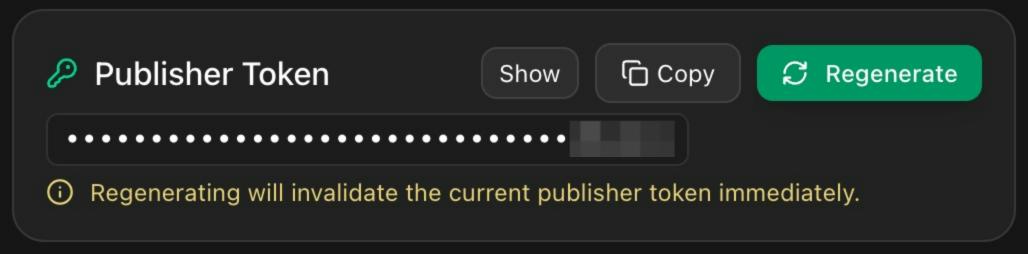
Publisher tokens control which agents and services can publish camera streams to TheRelay. Only holders of valid publisher tokens can add cameras and streams.
Publisher Token Scope
- Account Level: Can publish to any agent in the account
- Agent Level: Restricted to a specific agent
- Permissions: Can be read-only or with publish rights
Creating a Publisher Token
- Log into TheRelay Dashboard
- Go to Settings > Tokens
- Click "Create Publisher Token"
- Choose token scope (account or specific agent)
- Set expiration (optional - default never expires)
- Click "Generate" and copy the token
Using Publisher Tokens
Use publisher tokens when:
- Installing TheRelay Agent in a new location
- Integrating with external VMS systems
- Granting publishing rights to third parties
- Creating API clients for automation
Access Tokens
Access tokens grant permission to view and access camera streams. These tokens are what you share with viewers, integrations, or external systems that need to consume your streams.
Access Token Scope
- Camera Level: Access to a single specific camera
- Host Level: Access to all cameras on a host/agent
- Account Level: Access to all cameras in account
- Protocol Level: Restrict to specific protocols (WebRTC, RTSP, etc.)
Creating an Access Token
- Log into TheRelay Dashboard
- Navigate to Cameras section
- Click on a camera or go to Settings > Tokens
- Click "Create Access Token"
- Choose scope and permissions
- Set optional expiration time
- Generate token and share with authorized users
Token Expiration
- No Expiration: Token valid indefinitely
- Time-Based: Expires at specific date/time
- Duration: Expires after set duration (1 hour, 1 day, 1 week, etc.)
- Expired tokens are automatically invalid
Token Studio
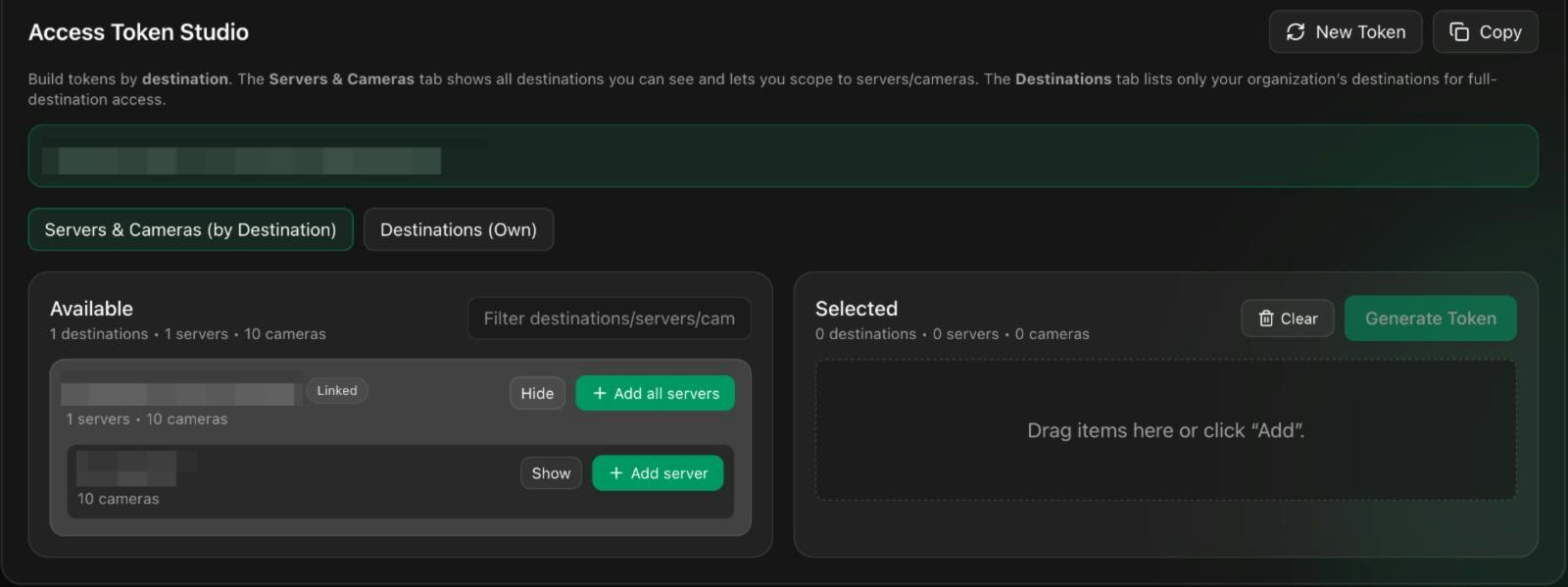
The Token Studio in TheRelay Dashboard provides a centralized interface for managing all your tokens and access control policies.
Token Management Features
- Create: Generate new tokens with custom permissions
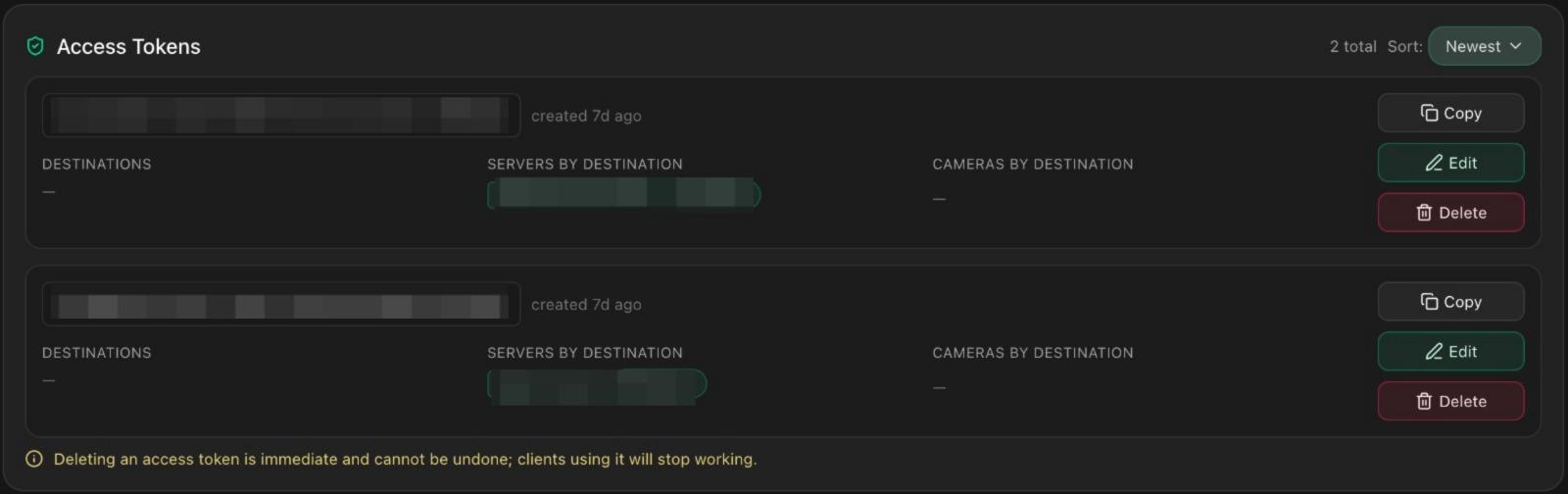
- View: See all active tokens and their scopes
- Revoke: Instantly deactivate tokens
- Rotate: Replace old tokens with new ones
- Audit Log: Review all token activities
Access Token Studio
- Log into TheRelay Dashboard
- Click "Token Studio" in main menu
- View all active tokens and their usage
- Create, modify, or revoke tokens
- Review access logs for compliance
Token Usage Statistics
Token Studio shows:
- Last used timestamp for each token
- Access patterns and frequency
- IP addresses accessing streams
- Protocol usage breakdown
Token Best Practices
Security Recommendations
- Create separate tokens for different use cases
- Use minimum required scope for each token
- Set expiration times for temporary access
- Revoke tokens when users leave organization
- Store tokens securely (not in code or config files)
- Rotate tokens regularly (every 90 days recommended)
- Never share tokens through insecure channels
Usage Patterns
- Per-User Tokens: Create unique token per viewer
- Per-Integration: Separate tokens for each API client
- Temporary Access: Use expiration for guest access
- Camera-Specific: Limit tokens to intended cameras
- Monitoring: Regularly audit unused tokens
Incident Response
If you suspect a token has been compromised:
- Immediately revoke the compromised token
- Check access logs for suspicious activity
- Review which accounts may have been accessed
- Rotate related credentials if needed
- Contact support if major incident suspected
Troubleshooting Token Issues
Token Not Working
- Verify token has not expired
- Check token scope matches camera being accessed
- Ensure token is valid format (not corrupted)
- Try recreating token if issues persist
- Review access logs for rejection reason
Cannot Create Token
- Verify you have admin privileges
- Check account token limits (may have maximum)
- Ensure camera/agent exists and is online
- Try again after a few moments
Lost Token
- Tokens cannot be recovered once lost
- Create a new token to replace it
- Revoke the old token if possible
- Update any systems using the old token
Token Usage Not Showing
- Wait a few moments for logs to update
- Refresh the dashboard
- Verify token is being used correctly
- Check if access is being denied for permissions